
Export Results to Excel or CSV
Last updated September 5, 2025Exporting and Copying Your Results Grid
Avantis allows you to export your results as an Excel or CSV file or copy selected rows with headers for use in an existing spreadsheet.
Exporting Your Results as a Spreadsheet
-
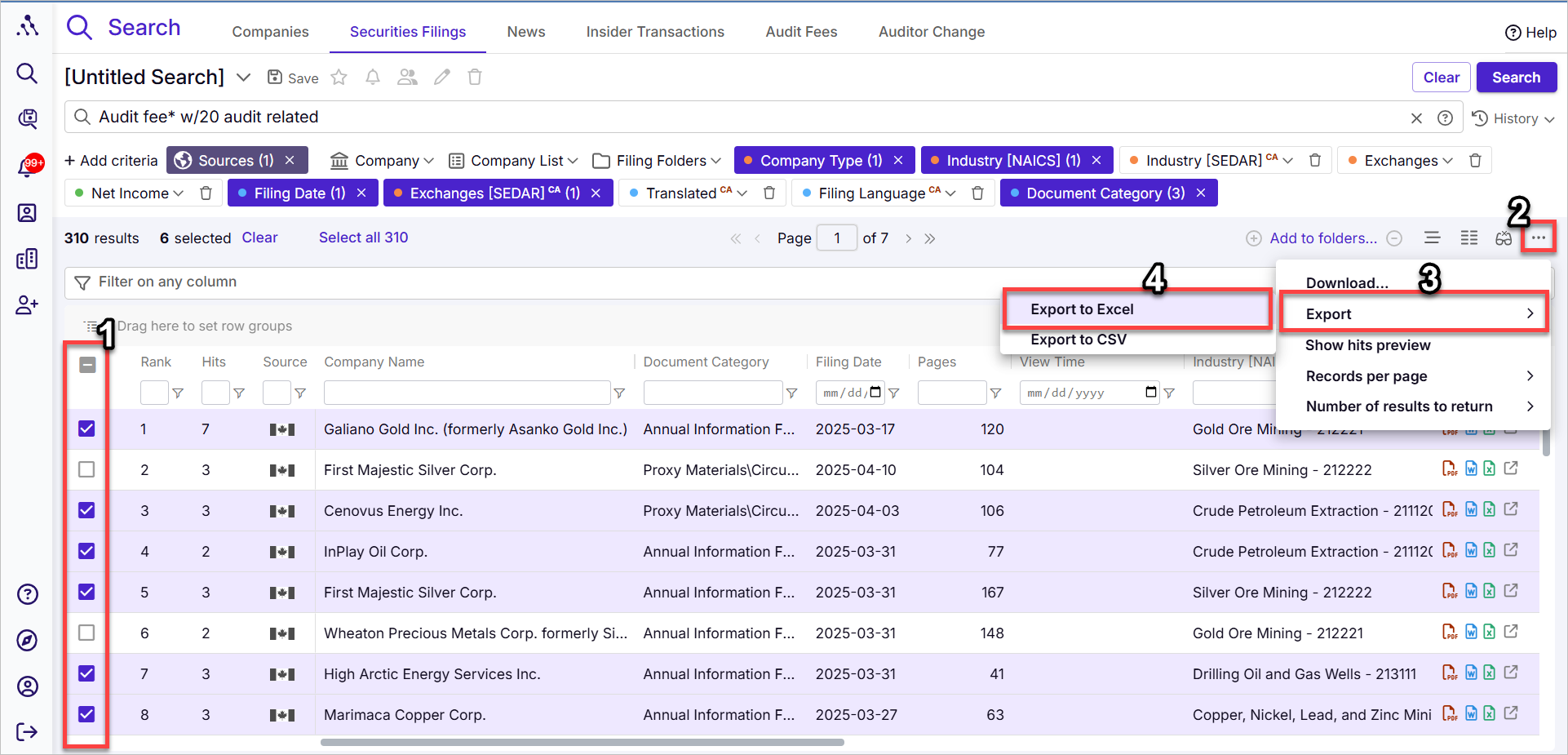
Select some or all items in your results grid using the checkboxes or the Select All checkbox.
-
Click the ellipsis (three dots) in the upper right of your results grid and choose Export.
-
Select your desired file type (Excel or CSV).
-
Your results will download automatically to the preferred location set in your browser.
-
Open the file and click Enable Editing to activate your spreadsheet.
-
The last column contains a hyperlink that takes you directly to the document in Avantis.
Copying Your Results to an Existing Spreadsheet
-
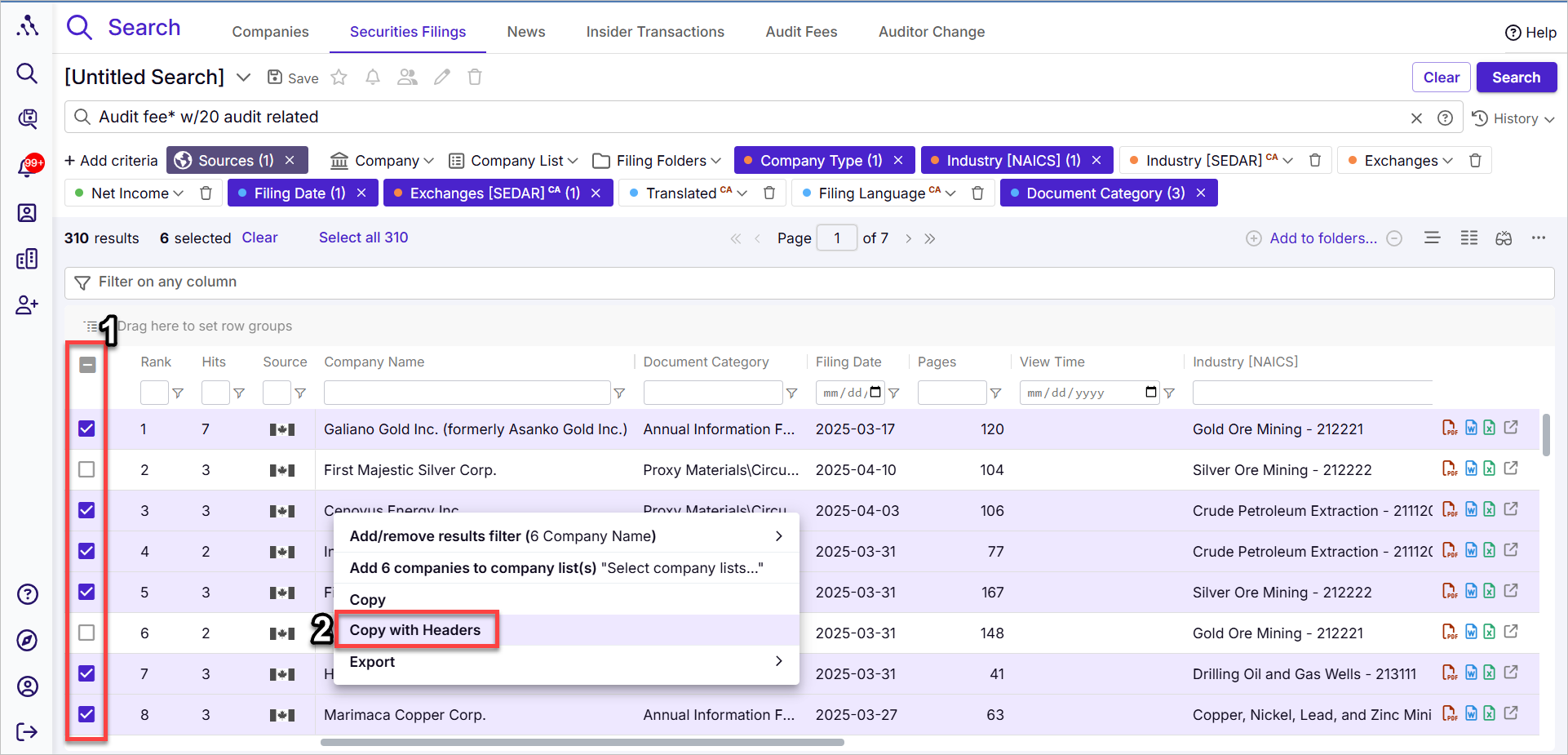
Select some or all items in your results grid using the checkboxes or the Select All checkbox.
-
Right-click on any of the selected rows and choose Copy with Headers.
-
Open Excel (or another spreadsheet program) and paste the data into any cell.
-
Your selected rows will appear along with their column headers.
This feature makes it easy to export, analyze, and share your search results.
Video: Exporting Your Results Grid as a Spreadsheet